Table Of Contents:
- Initial Considerations
- What Is A Portfolio Presentation?
- How To Create A Portfolio Presentation
- Troubleshooting
Initial Considerations
- An active trial or a Standard, Plus, Professional, Growth, or Premium plan is required to access this feature.
- You must upload your artworks to your ArtPlacer account and include all the relevant information you wish to display on the labels, such as Year, Medium, Material, Dimensions, and Price. Learn more on how to upload artworks here.
What Is A Portfolio Presentation?
A Portfolio Presentation is a beautiful PDF presentation of Artworks featuring its' essential information (download example at the bottom of the page).
Here are some ideas to make the most of this feature, depending on your artistic role:
- Gallery: Impress potential collectors with customized Portfolio presentations, segmented by themes such as artist, medium, subject, size, similar works, or available pieces.
- Artist: Engage potential collectors with tailored presentations for grants, residencies, and calls for artists. Showcase your work for gallery representation and commissions by presenting similar previous projects.
- Art Dealer: Impress clients and collectors with detailed information about specific artists or curated selections of artworks grouped by themes or sizes. Offer bespoke, curated collections to meet your clients' tastes and interests.
- Photographer: Enhance gallery representation and engage collectors with themed portfolio presentations. Use these presentations for grants, residencies, and calls for artists, complete with in-depth artwork information.
How To Create A Portfolio Presentation
To begin, open this section, go to Sidebar > My Creations > Presentations, and click "NEW" > New Portfolio Presentation.
Or click Quick Creations > New Portfolio Presentation from the Artworks section using Bulk Actions.
Learn more about the Artworks Section.
Step 1/2
- Select the artwork(s) you want to include in your Presentation.
- Select the Artwork Details you want to include, such as Year, Medium, Material, Dimensions, and Price.
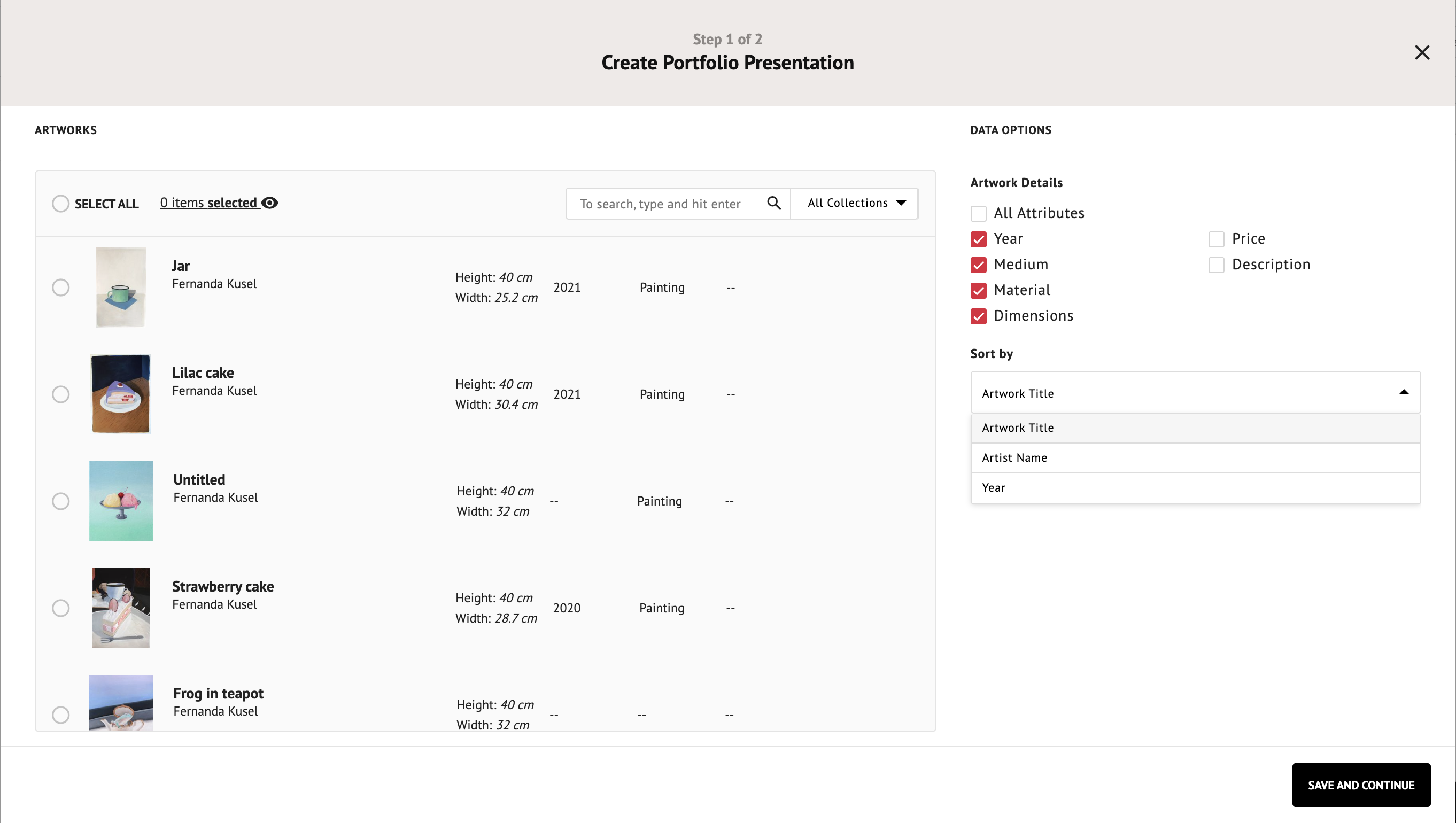
- Sort them by Artwork Title, Artist Name, or Year.
- (Optional) Choose a different image for an Artwork. See "Change the Image of an Artwork" below.
- Click (or tap) SAVE AND CONTINUE.
Change the Image of an Artwork
By default, each artwork appears in your Portfolio Presentation with its original image. If you'd rather show it in context, for example inside a Room Mockup, you can replace the image with one of your designs from My Designs.
- Select the artwork in the list. The CHANGE IMAGE button will appear on its row.
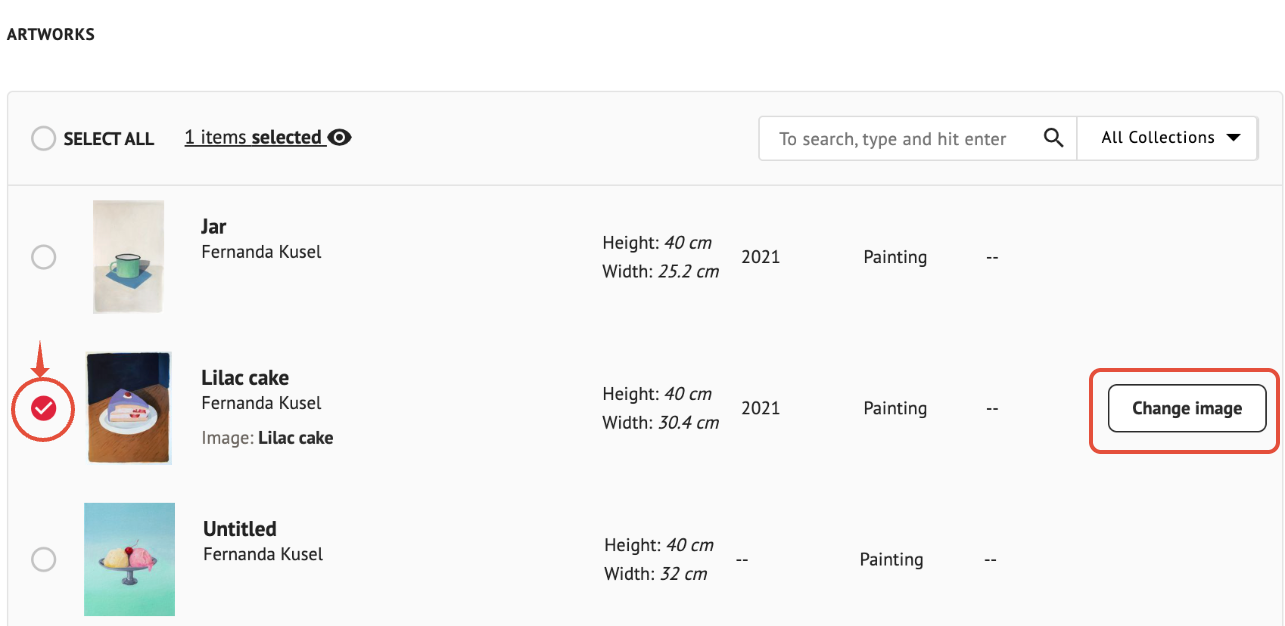
- Click CHANGE IMAGE. A window called Image for this artwork will open.
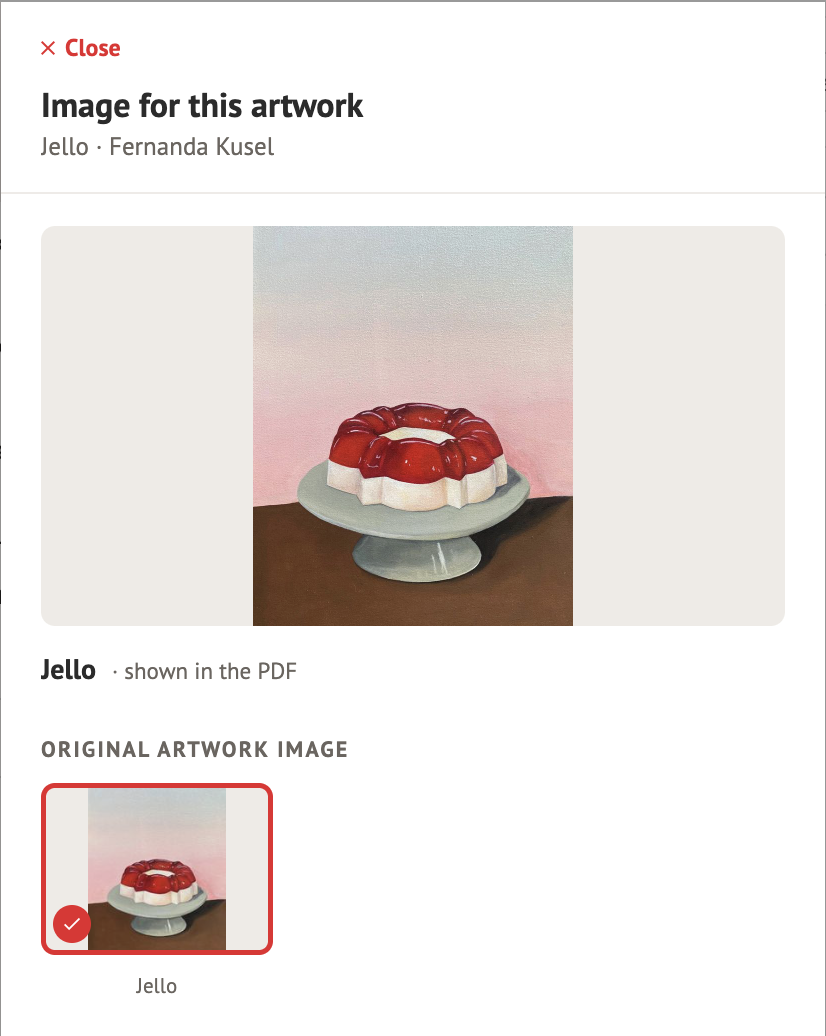
- In the MY DESIGNS section, you'll see the designs where that Artwork is included. If you have many, type the name of your design in the search bar to find it faster.
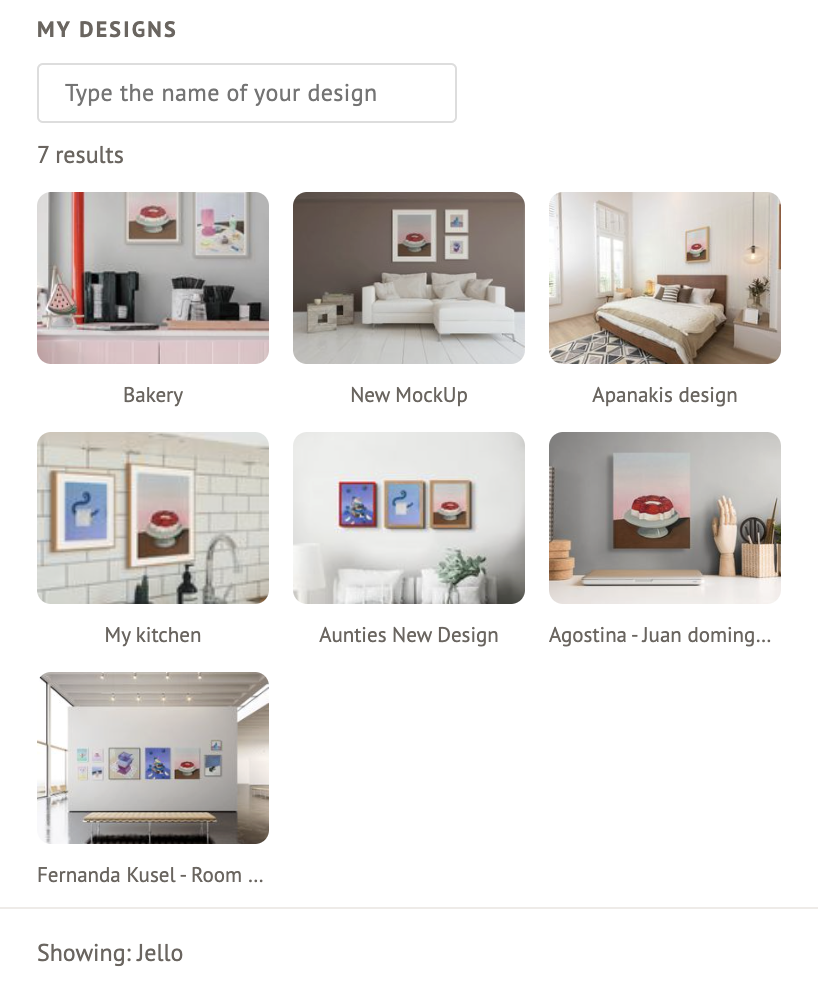
- Click the design you want to use. It will replace the artwork's image in your presentation (you can also restore the original artwork image).
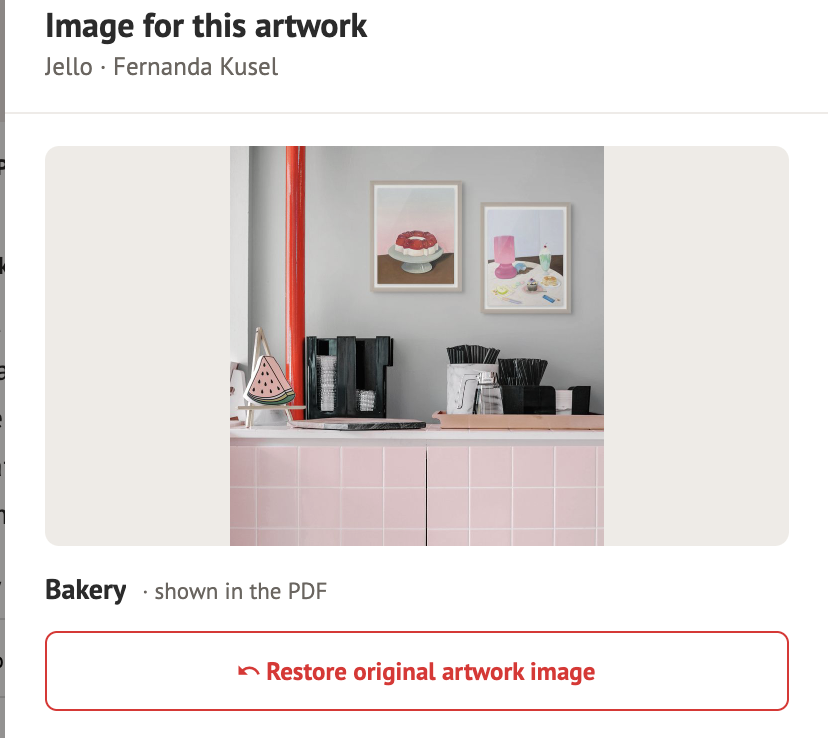
- Click Close to go back to the artwork list.
- To do the same with another Artwork, select it and repeat steps 1 to 5.
- Once you are ready, click "Save and Continue"
Step 2/2
General:
- Fill in the Artist or Art Business Name (Mandatory)
- Upload a Brand Image (Optional)
Cover Page:
- Choose the Page Header alignment (Centered, Left, or Right).
- Assign a title (Mandatory).
- Upload a Background Image (Mandatory).
Additional Information:
- Fill in the Artist's Name.
- Add a Statement (up to 2000 words).
Contact Details:
- Add a Contact Email (Mandatory).
- Add a Phone, Instagram, Website, and Address.
Preferences:
- Select a Font Family
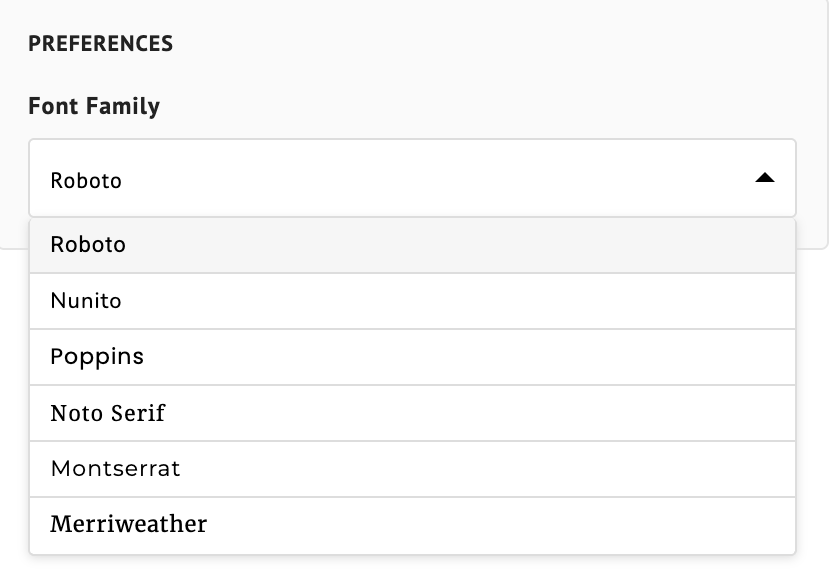
Click (or tap) SAVE AND FINISH and you are all set!
You can now PRINT the whole presentation on paper or to a PDF file, share the URL generated, and/or print or share a QR code.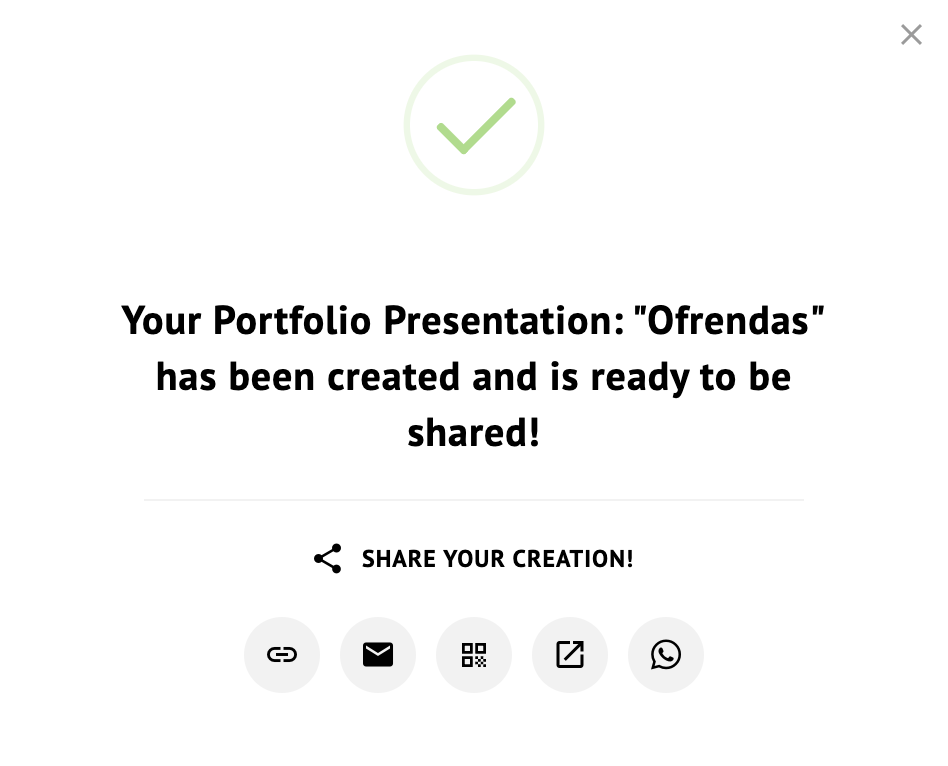
Troubleshooting
If you notice that an Artwork you've selected to be featured in the presentation, is missing, it may be related to its Privacy Settings. Please head up to the Artworks Section, open the Artwork Edit view, and verify if named settings are set to "PRIVATE."
You’ll find an example attached for reference. You can also view it by following this link.